A large number of people have shown a keen interest in learning how to build a smart chatbot. To help us gain a better understanding of the process, I'm excited to bring you a special guest post by Damien Benveniste. He is the author of The AiEdge newsletter and was a Machine Learning Tech Lead at Meta. He holds a PhD from The Johns Hopkins University.
Below, he shares how to build a smart chatbot in 10 minutes with LangChain.
Subscribe to Damien's The AiEdge newsletter for more. You can also follow him on LinkedIn and Twitter.
LangChain is an incredible tool for interacting with Large Language Models (LLM.) In this deep dive, I’ll show you how to use databases, tools and memory to build a smart chatbot. At the end, I show how to ask ChatGPT for investment advice. This article covers:
What is LangChain?
Indexing and searching new data
Let’s get some data
Pinecone: A vector database
Storing the data
Retrieving data with ChatGPT
Giving ChatGPT access to tools
Providing a conversation memory
Putting everything together
Giving access to Google Search
Utilizing the database as a tool
Solving a difficult problem: Should I invest in Google today?
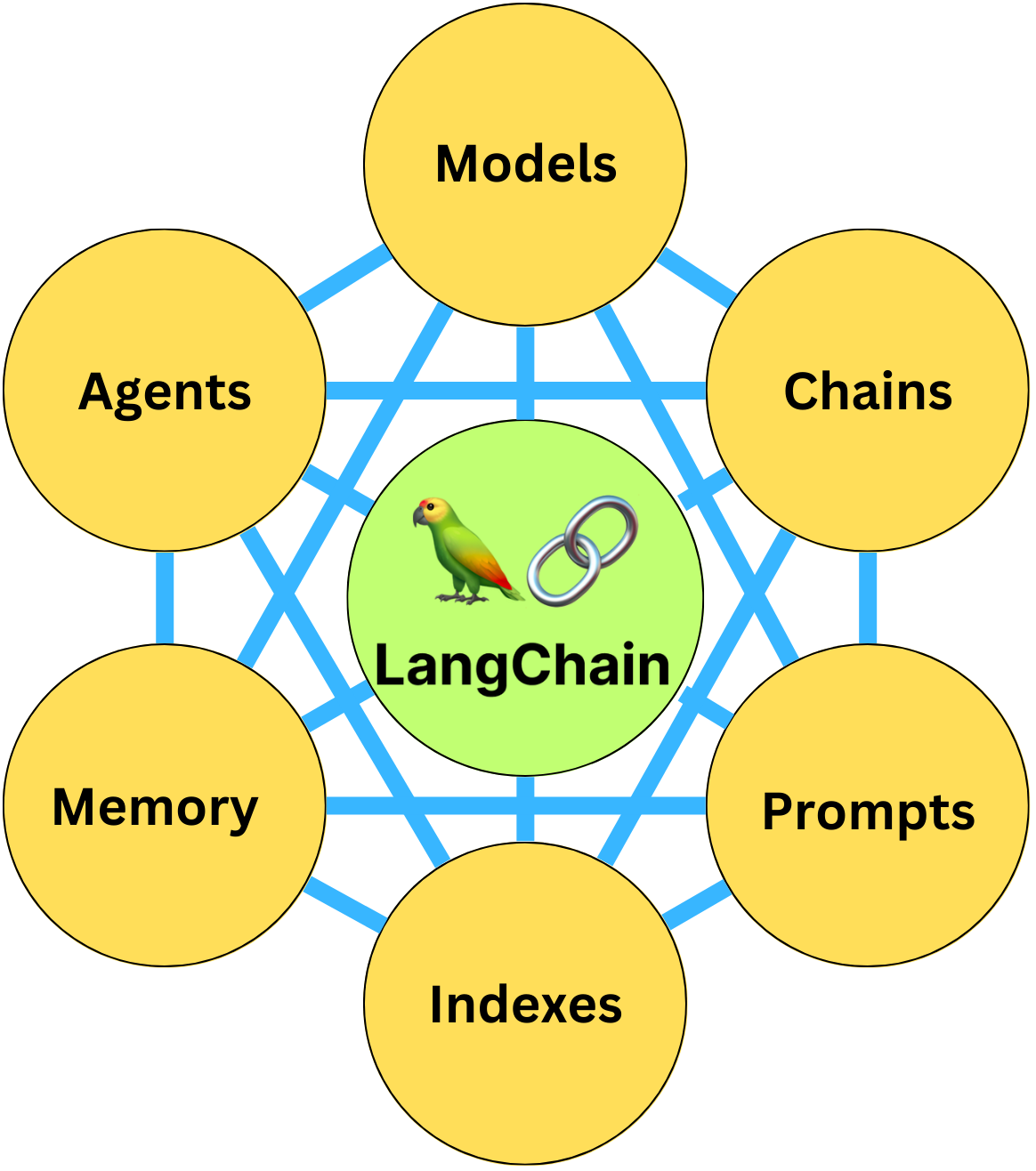
LangChain is a package to build applications using LLMs. It is composed of 6 modules:
Prompts: This module allows you to build dynamic prompts using templates. It can adapt to different LLM types depending on the context window size and input variables used as context, such as conversation history, search results, previous answers, and more.
Models: This module provides an abstraction layer to connect to most available third- party LLM APIs. It has API connections to ~40 public LLMs, chat and embedding models.
Memory: This gives the LLMs access to the conversation history.
Indexes: Indexes refer to ways to structure documents so that LLMs can best interact with them. This module contains utility functions for working with documents and integration to different vector databases.
Agents: Some applications require not just a predetermined chain of calls to LLMs or other tools, but potentially to an unknown chain that depends on the user’s input. In these types of chains, there is an agent with access to a suite of tools. Depending on the user’s input, the agent can decide which – if any – tool to call.
Chains: Using an LLM in isolation is fine for some simple applications, but many more complex ones require the chaining of LLMs, either with each other, or other experts. LangChain provides a standard interface for Chains, as well as some common implementations of chains for ease of use.
Currently, the API is not well documented and is disorganized, but if you are willing to dig into the source code, it is well worth the effort. I advise you to watch the following introductory video to get more familiar with it:
I now demonstrate how to use LangChain. You can install all the necessary libraries by running the following:
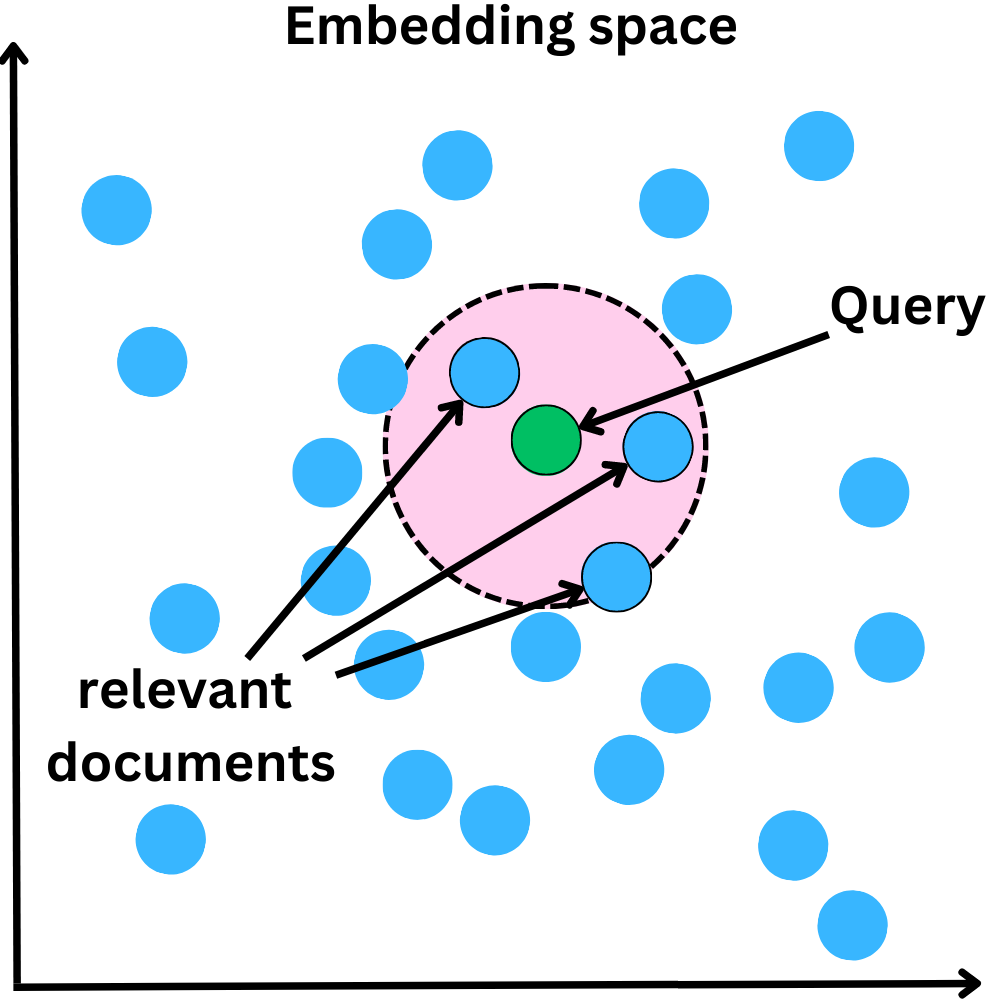
pip install pinecone-client langchain openai wikipedia google-api-python-client unstructured tabulate pdf2imageOne difficulty with LLMs is that they only know what they learned during training. So how do we get them to use private data? One way is to make new text data discoverable by the LLM. The typical way to do this is to convert all private data into embeddings stored in a vector database. The process is as follows:
Chunk the data into small pieces
Pass that data through an LLM. The resulting final layer of the network can be used as a semantic vector representation of the data
The data can then be stored in a database of the vector representation used to recover that piece of data

A question which we ask can be converted into an embedding, which is the query. We can then search for pieces of data located close to it in the embedding space and feed relevant documents to the LLM for it to extract an answer from:
I sourced interesting data for a demonstration and selected the earnings reports of tech giant, Alphabet (Google): https://abc.xyz/investor/previous/
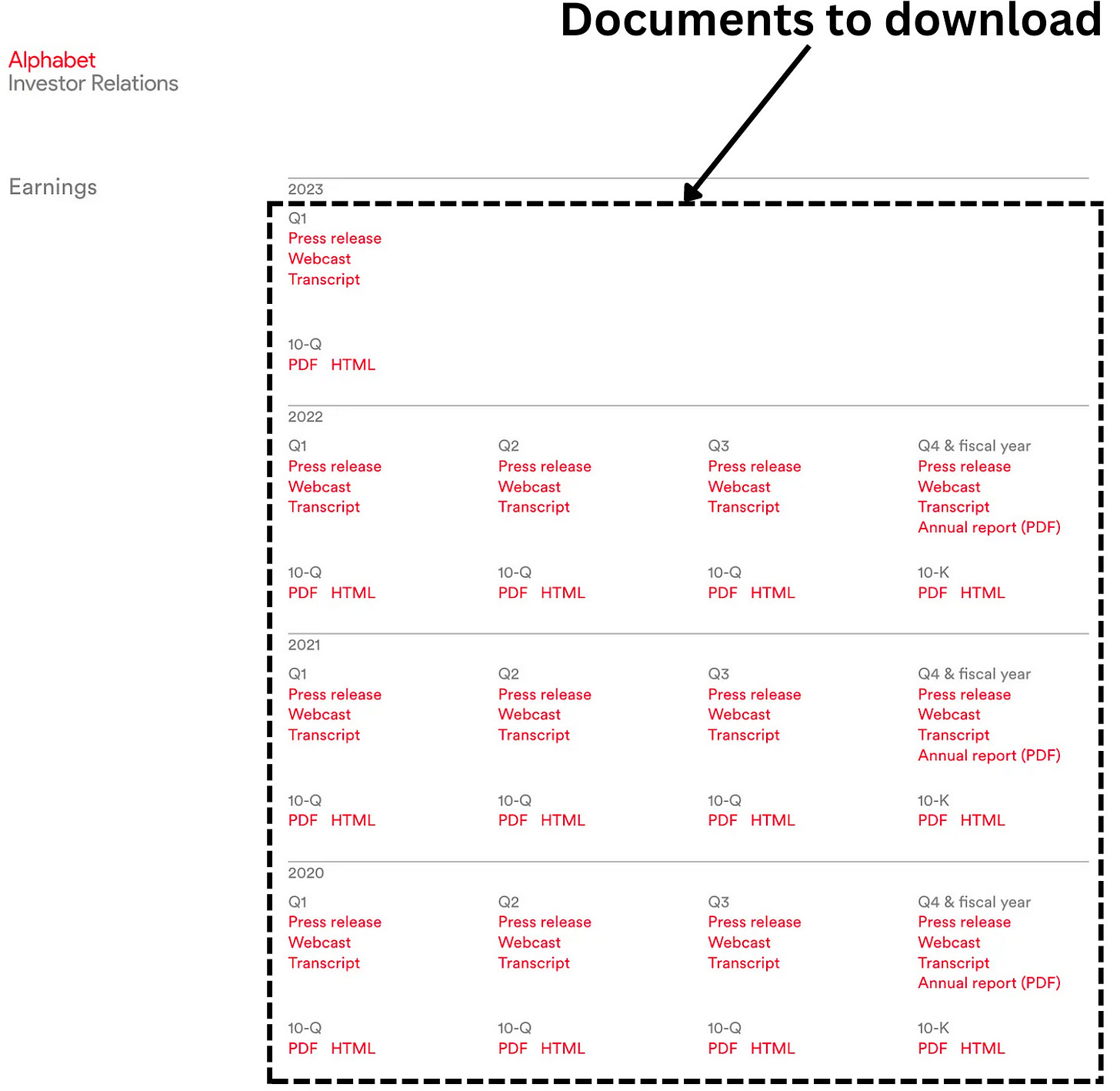
For simplicity, I downloaded and stored the reports on my computer’s hard drive:

We can now load those documents into memory with LangChain, using 2 lines of code:
from langchain.document_loaders import DirectoryLoader

loader = DirectoryLoader(
    './Langchain/data/', # my local directory
    glob='**/*.pdf',     # we only get pdfs
    show_progress=True
)
docs = loader.load()
docs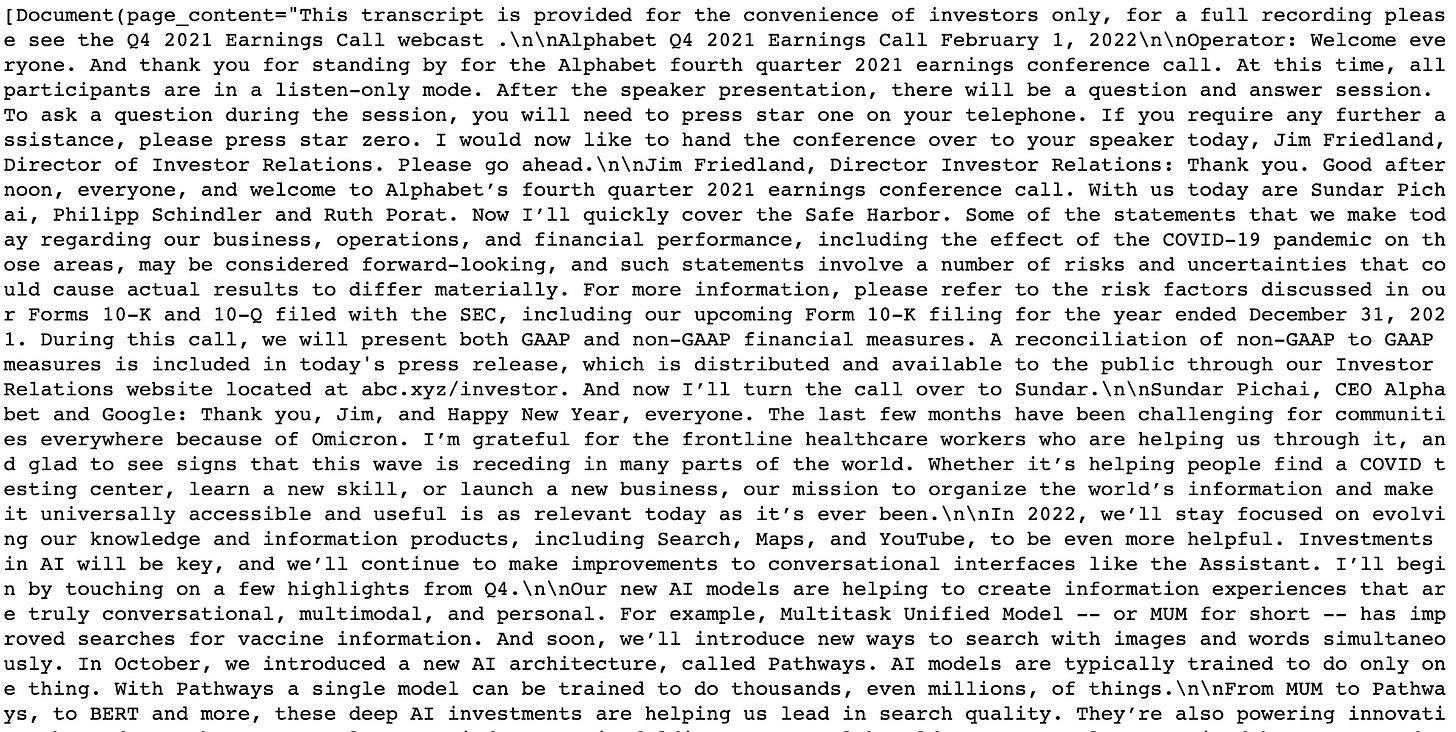
We split them into chunks. Each chunk corresponds to an embedding vector.
from langchain.text_splitter import CharacterTextSplitter

text_splitter = CharacterTextSplitter(
    chunk_size=1000,
    chunk_overlap=0
)
docs_split = text_splitter.split_documents(docs)
docs_split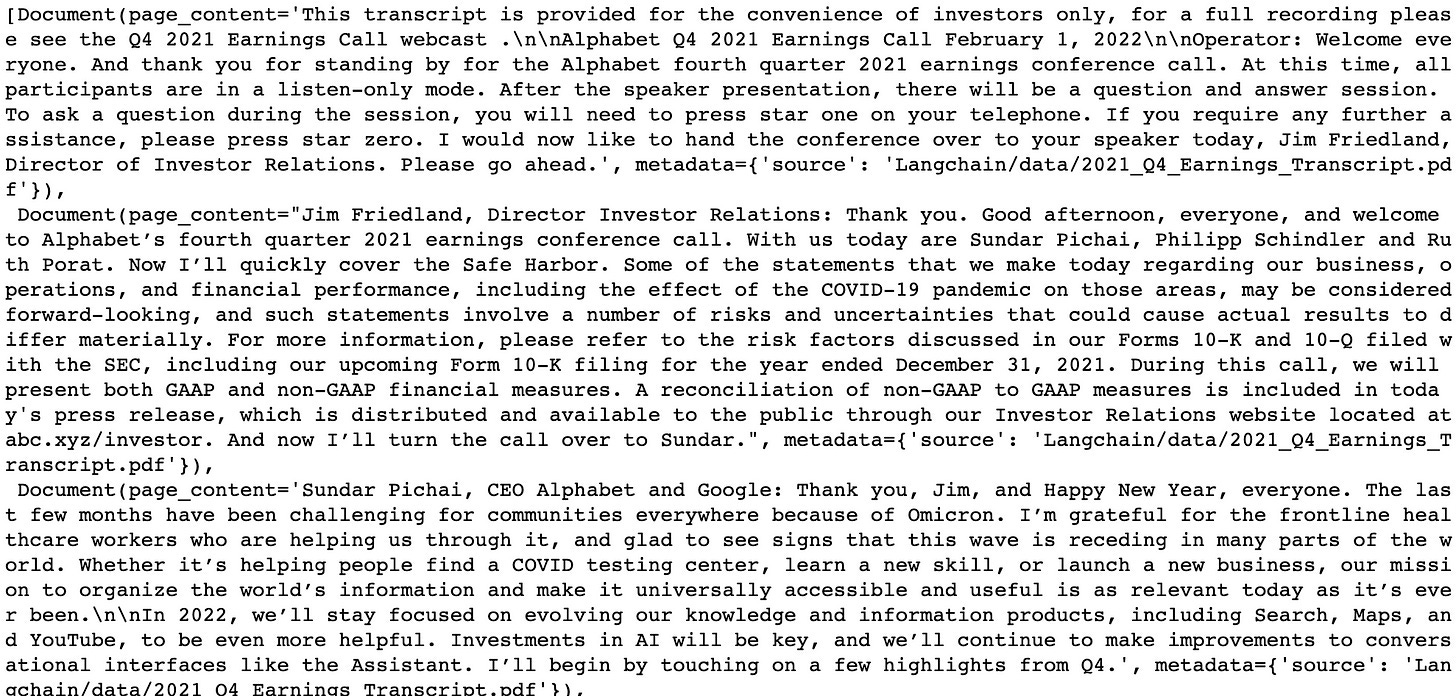
For this reason, we need to convert the data into embeddings and store them in a database.
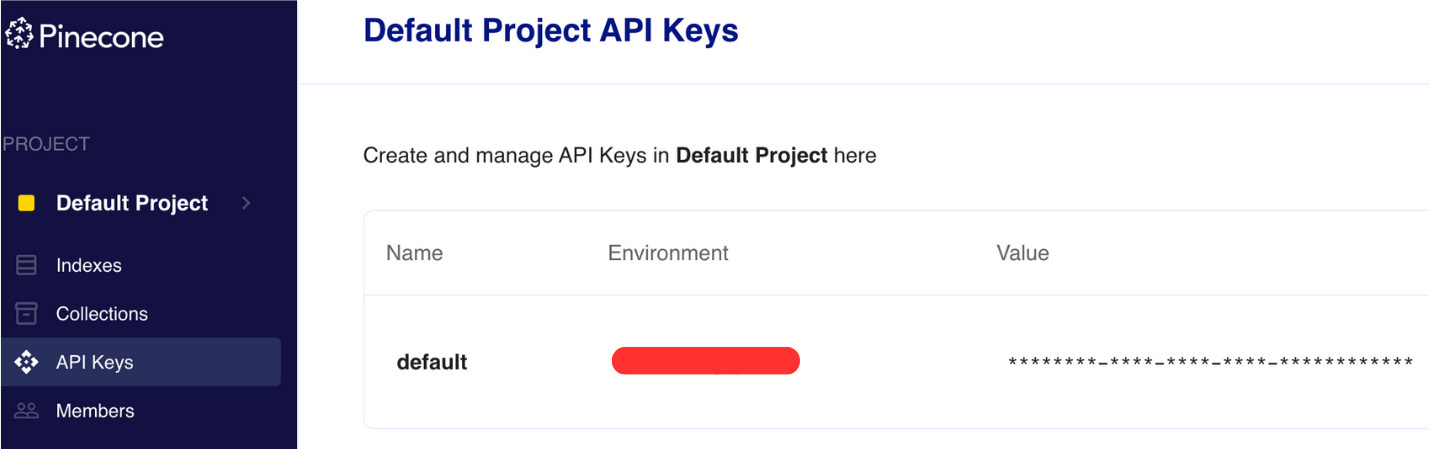
To store the data, I use Pinecone. You can create a free account and automatically get API keys with which to access the database:
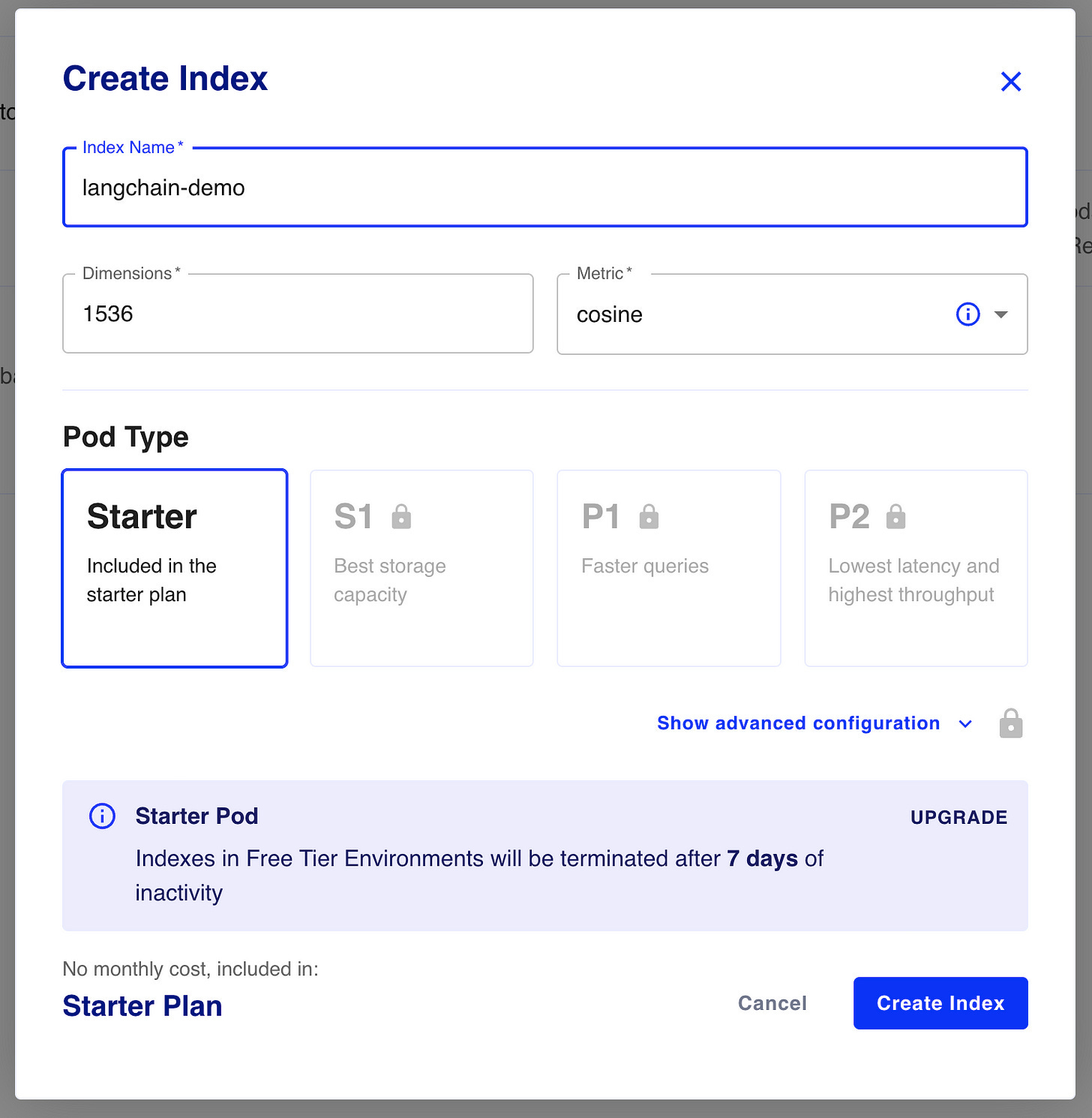
In the “indexes” tab, click on “create index.” Give it a name and a dimension. I used “1536” for the dimension, as it is the size of the chosen embedding from the OpenAI embedding model. I use the cosine similarity metric to search for similar documents:
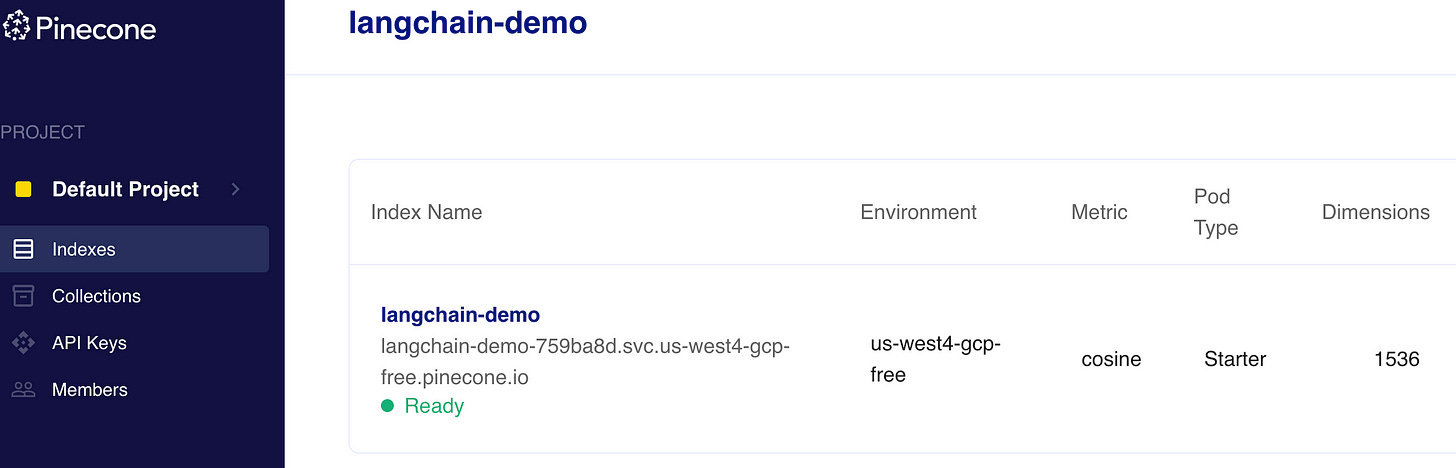
This will create a vector table:
Before continuing, make sure to get a OpenAI API key by signing up to the OpenAI platform:
Let’s first write down our API keys
import os

PINECONE_API_KEY = ... # find at app.pinecone.io
PINECONE_ENV = ...     # next to api key in console
OPENAI_API_KEY = ...   # found at platform.openai.com/account/api-keys

os.environ['OPENAI_API_KEY'] = OPENAI_API_KEY
We upload the data to the vector database. The default OpenAI embedding model used in Langchain is 'text-embedding-ada-002' (OpenAI embedding models.) It is used to convert data into embedding vectors
import pinecone
from langchain.vectorstores import Pinecone
from langchain.embeddings.openai import OpenAIEmbeddings

# we use the openAI embedding model
embeddings = OpenAIEmbeddings()
pinecone.init(
    api_key=PINECONE_API_KEY,
    environment=PINECONE_ENV
)

doc_db = Pinecone.from_documents(
    docs_split,
    embeddings,
    index_name='langchain-demo'
)
We can now search for relevant documents in that database using the cosine similarity metric
query = "What were the most important events for Google in 2021?"
search_docs = doc_db.similarity_search(query)
search_docs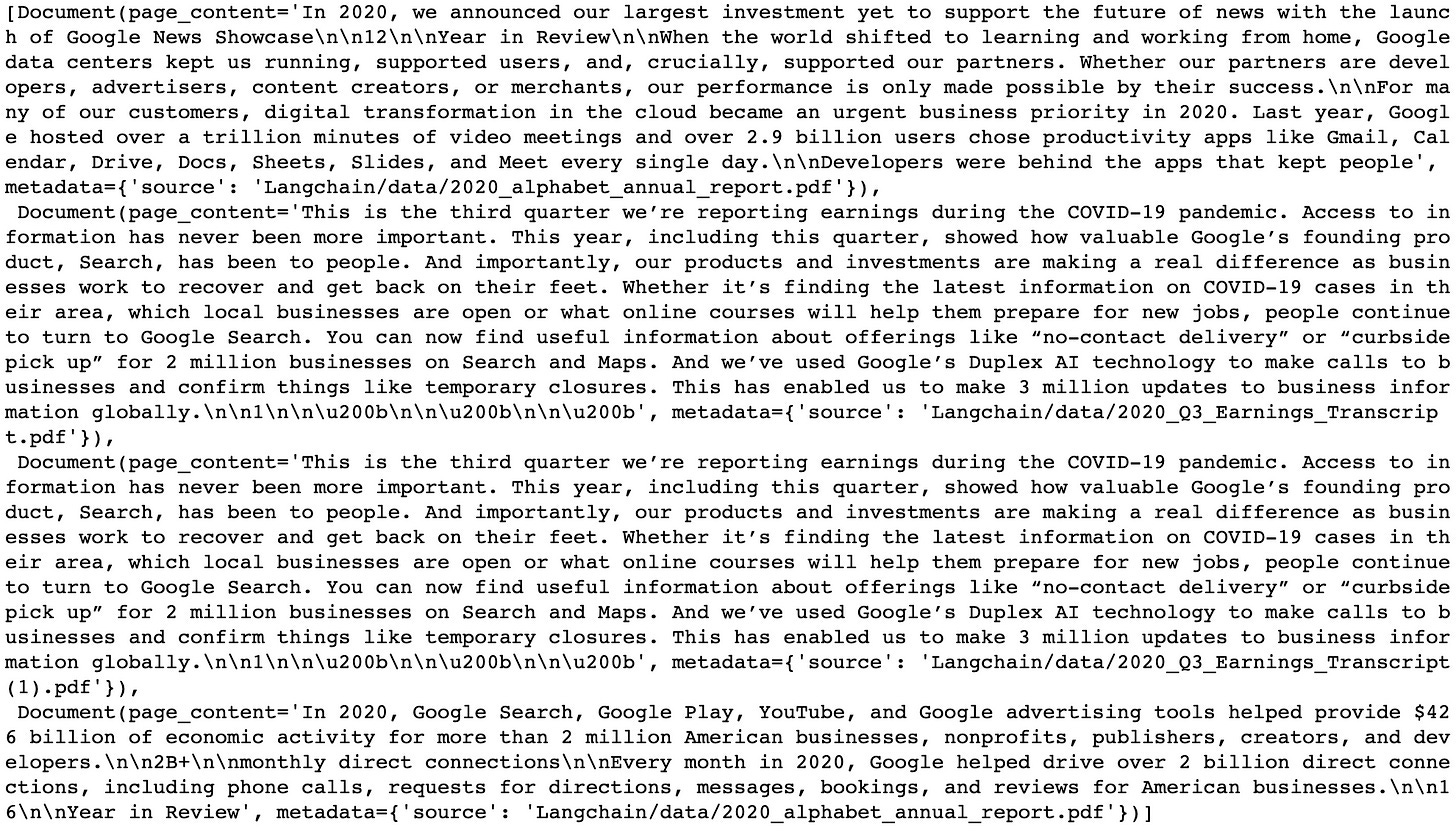
We can now use a LLM to utilize the database data. Let’s get an LLM such as GPT-3 using:
from langchain import OpenAI
llm = OpenAI()
or we could get ChatGPT using
from langchain.chat_models import ChatOpenAI
llm = ChatOpenAI()
Let’s use the RetrievalQA module to query that data:
from langchain.chains import RetrievalQA

qa = RetrievalQA.from_chain_type(
    llm=llm,
    chain_type='stuff',
    retriever=doc_db.as_retriever(),
)

query = "What were the earnings in 2022?"
result = qa.run(query)

result

> 'The total revenues for the full year 2022 were $282,836 million, with operating income and operating margin information not provided in the given context.'
RetrievalQA is actually a wrapper around a specific prompt. The chain type “stuff“ will use a prompt, assuming the whole query text fits into the context window. It uses the following prompt template:
Use the following pieces of context to answer the users question.
If you don't know the answer, just say that you don't know, don't try to make up an answer.
----------------
{context}

{question}
Here the context will be populated with the user’s question and the results of the retrieved documents found in the database. You can use other chain types: “map_reduce”, “refine”, and “map-rerank” if the text is longer than the context window.
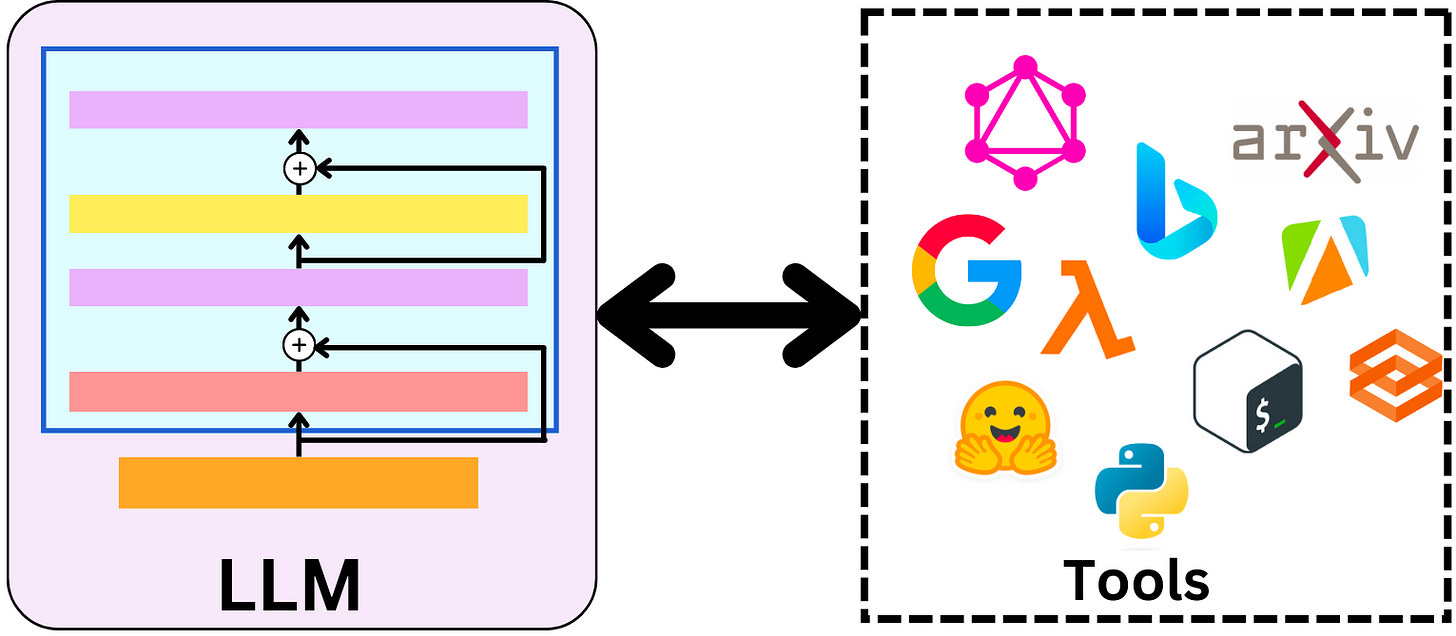
Until now, the LLM was forced to use the database data, but we can give it access to multiple tools. LangChain employs "agents" which, based on user input, decide which tools to utilize from a suite to which they have access. The two main types are "Action Agents" which take actions one step at a time, and "Plan-and-Execute Agents," which decide a plan of actions first and then execute them one at a time. For example, let’s give ChatGPT access to Wikipedia. First, install the Wikipedia package with pip. Then by using the flag “ZERO_SHOT_REACT_DESCRIPTION,” the LLM is able to understand how to use Wikipedia based on the tool description:
from langchain.agents import load_tools
from langchain.agents import initialize_agent
from langchain.agents import AgentType


llm = ChatOpenAI()
# we load wikipedia
tools = load_tools(['wikipedia'], llm=llm)

agent = initialize_agent(
    tools,
    llm,
    agent=AgentType.ZERO_SHOT_REACT_DESCRIPTION,
    verbose=True
)

agent.run('When was google created?')

> Entering new AgentExecutor chain...
I need to find out the date of Google's creation
Action: Wikipedia
Action Input: "Google creation date"
Observation: Page: Google Scholar
Summary: Google Scholar ...
...

Thought:The creation date of Google is September 4, 1998, according to Wikipedia's page on Google.
Final Answer: September 4, 1998.
I am not showing the whole result here, but the agent called Wikipedia multiple times and generated multiple calls to the LLM. The default prompt template is as follows:
Answer the following questions as best you can. You have access to the following tools:
{tools}

Use the following format:

Question: the input question you must answer
Thought: you should always think about what to do
Action: the action to take, should be one of [{tool_names}]
Action Input: the input to the action
Observation: the result of the action
... (this Thought/Action/Action Input/Observation can repeat N times)
Thought: I now know the final answer
Final Answer: the final answer to the original input question"""

Begin!

Question: {input}
Thought:{agent_scratchpad}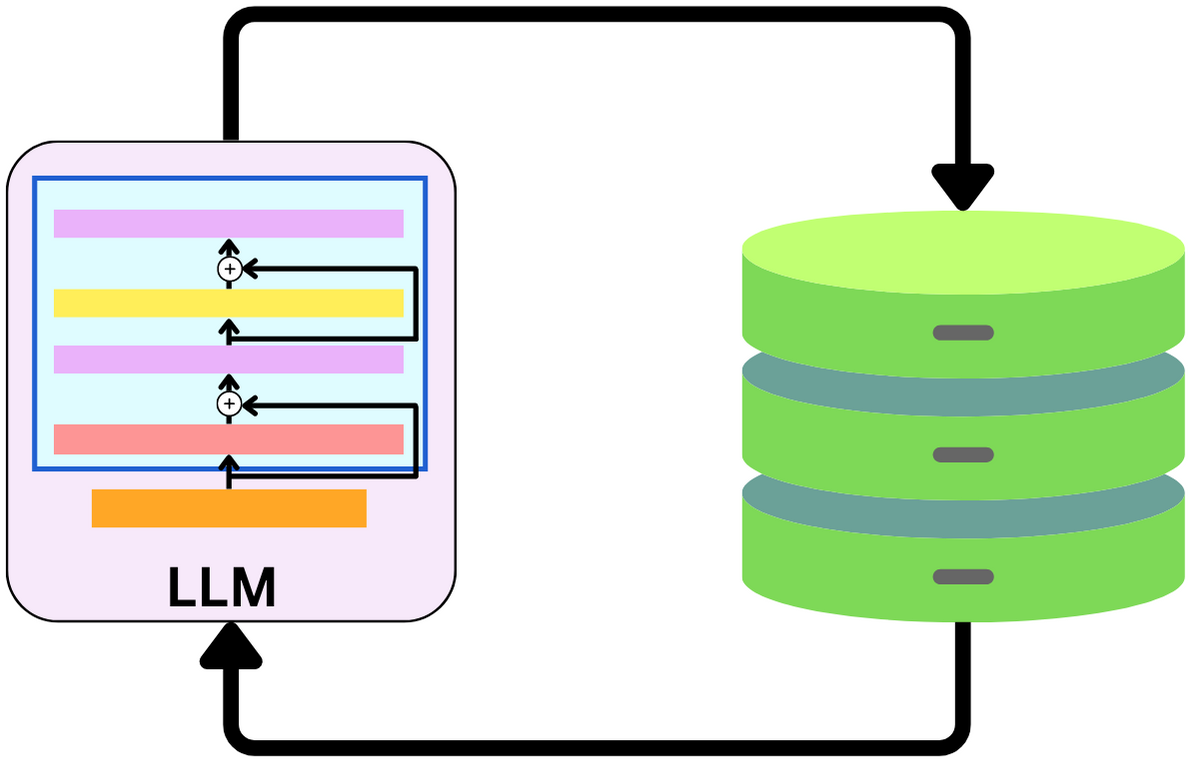
Another problem is that the LLM doesn’t remember what was said
agent.run('When was google created?')

> 'Google was created on September 4, 1998.'

agent.run('By whom?')

> 'None, as the original question was incomplete and required more context.'
We can provide it with memory by doing this simple modification
from langchain.memory import ConversationBufferMemory

memory = ConversationBufferMemory(memory_key='chat_history')

agent = initialize_agent(
    tools,
    llm,
    agent=AgentType.CONVERSATIONAL_REACT_DESCRIPTION,
    verbose=True,
    memory=memory
)
Let’s rerun the previous questions
agent.run('When was google created?')

> 'Google was founded on September 4, 1998, by Larry Page and Sergey Brin while they were PhD students at Stanford University.'

agent.run('By whom?')

> 'Larry Page and Sergey Brin founded Google on September 4, 1998, while they were PhD students at Stanford University. Together they own about 14% of the company's publicly listed shares and control 56% of its stockholder voting power through super-voting stock. Google is now one of the largest technology companies in the world, offering a wide range of products and services.'
Effectively, we modified the prompt template under the hood and allowed the LLM to use the conversation history to form its answers. We can look at the new prompt template by running:
agent.agent.llm_chain.prompt.template 'Assistant is a large language model trained by OpenAI.
Assistant is designed to be able to assist with a wide range of tasks, from answering simple questions to providing in-depth explanations and discussions on a wide range of topics. As a language model, Assistant is able to generate human-like text based on the input it receives, allowing it to engage in natural-sounding conversations and provide responses that are coherent and relevant to the topic at hand.
Assistant is constantly learning and improving, and its capabilities are constantly evolving. It is able to process and understand large amounts of text, and can use this knowledge to provide accurate and informative responses to a wide range of questions. Additionally, Assistant is able to generate its own text based on the input it receives, allowing it to engage in discussions and provide explanations and descriptions on a wide range of topics.
Overall, Assistant is a powerful tool that can help with a wide range of tasks and provide valuable insights and information on a wide range of topics. Whether you need help with a specific question or just want to have a conversation about a particular topic, Assistant is here to assist.
TOOLS:
------
Assistant has access to the following tools:
> Wikipedia: A wrapper around Wikipedia. Useful for when you need to answer general questions about people, places, companies, facts, historical events, or other subjects. Input should be a search query.
> Calculator: Useful for when you need to answer questions about math.
To use a tool, please use the following format:
```
Thought: Do I need to use a tool? Yes
Action: the action to take, should be one of [Wikipedia, Calculator]
Action Input: the input to the action\nObservation: the result of the action
```
When you have a response to say to the Human, or if you do not need to use a tool, you MUST use the format:
```
Thought: Do I need to use a tool? No
AI: [your response here]
```
Begin!
Previous conversation history:
{chat_history}
New input: {input}
{agent_scratchpad}'That is a lot of context for the LLM to be able to correctly answer the question!
Let’s give ChatGPT access to Google Search. For this, we need the API key. Follow these steps to get the API:
Go to the Google Cloud Console.
If you don't have an account, create one and log in
Create a new project by clicking the “Select a Project” dropdown at the top of the page and clicking “New Project”
Give it a name and click “Create”
Set up a custom search API and add it to your .env file:
Go to the APIs & Services Dashboard
Click “Enable APIs and Services”
Search for Custom Search API and click on it
Click “Enable”
Go to the Credentials page
Click “Create Credentials”
Choose API Key
Copy the API key
Enable the Custom Search API on your project – you may need to wait a few minutes for it to propagate. Then set up a custom search engine and add to your .env file:
Go to the Custom Search Engine page
Click “Add”
Set up your search engine by following the prompts. You can choose to search the entire web or specific sites
Once you've created your search engine, click on “Control Panel”
Click “Basics”
Copy the Search engine ID
Now, we just need to set the environment variables and import the tools:
import os

os.environ['GOOGLE_CSE_ID'] = ...
os.environ['GOOGLE_API_KEY'] = ...

llm = ChatOpenAI()
tools = load_tools([
    'wikipedia',
    'llm-math',
    'google-search'
], llm=llm)We want to ensure ChatGPT can use the database alongside the other tools. So we need to cast our RetrievalQA agent as a tool:
from langchain.agents import Tool

name = """
Alphabet quarterly earning reports database
"""

description = """
Useful for when you need to answer questions about the earnings of Google and Alphabet in 2021, 2022 and 2023. Input may be a partial or fully formed question.
"""

search_tool = Tool(
    name=name,
    func=qa.run,
    description=description,
)

tools.append(search_tool)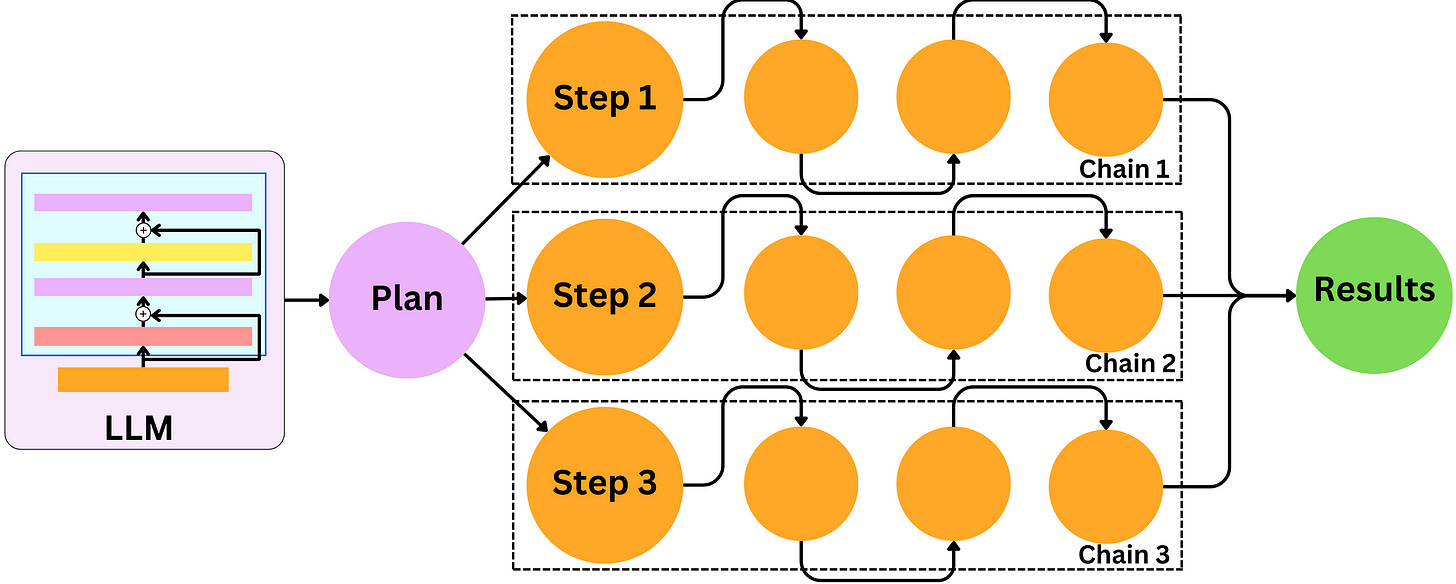
Now let's try to solve a difficult problem using the Plan and Execute toolbox. The LLM will create a set of steps to solve this problem and then execute each step, and assess if the problem has been solved:
from langchain.experimental.plan_and_execute import (
    PlanAndExecute,
    load_agent_executor,
    load_chat_planner
)

memory = ConversationBufferMemory(memory_key='chat_history')
planner = load_chat_planner(llm)
executor = load_agent_executor(llm, tools, verbose=True)

agent = PlanAndExecute(
    planner=planner,
    executor=executor,
    verbose=True,
    reduce_k_below_max_tokens=True
)
So should I invest in Google? Let’s ask the LLM:
agent.run('Should I invest in Google now?')The LLM outputs its whole reasoning to arrive at a conclusion. Here’s the plan that ChatGPT made to solve the problem:
Gather relevant information about Google's current financial situation
Analyze Google's financial and stock market performance
Consider any external factors that may impact Google's future performance
Make an informed decision based on the analysis
Communicate the decision to the user
Here is the resulting set of operations that ChatGPT executed:
Apparently, I should invest, based on its assessment! What do you think?
That’s all, folks!